Guides · free football management game
How to play Trophora
Pick your way to play and jump straight to its guide. New to Trophora, or to any free football manager game? Start with the first-season walkthrough below: every step has screenshots from the game on a phone and on a computer.
Choose your mode
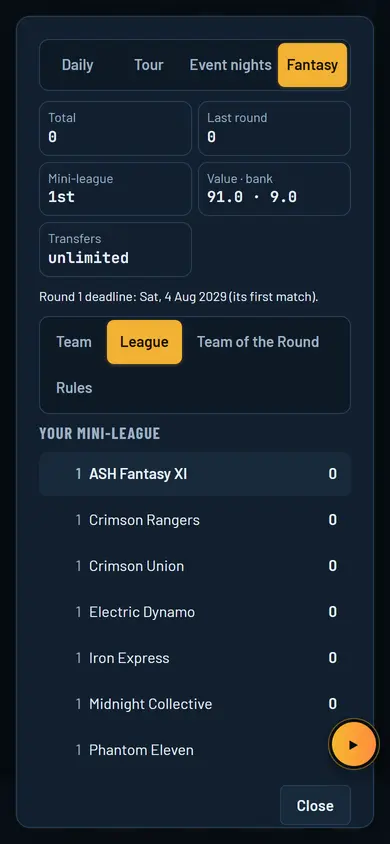
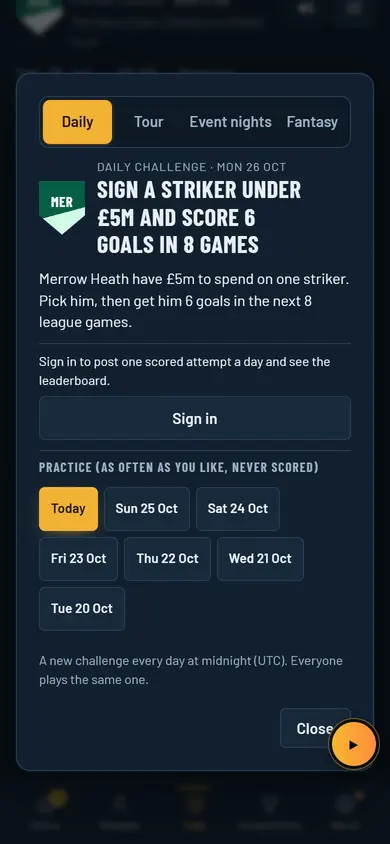
Manager careerPick a club, set the tactics, work the transfer market and keep the board on side. National teamPick a country, call up the squad and chase a major tournament. Add a club if you want both. Road to ProStart at 13, plan your weeks, impress the scouts and fight your way to a pro contract. Free agent or unemployedNo club, no job. Go to trials as a free agent, or apply and interview for manager jobs. Academy playerLoad an Academy graduation code and carry your made-up player into a career from age 13. OnlineShared worlds, private leagues with mates, a ranked Divisions ladder and live friendlies. FantasyPick 15 from your own league, captain one, and score as your season plays out. Daily challengesOne new scenario a day for everyone, a five-stage tour each week, and live nights online. Both teamsRun your club's men's and women's teams at once, with one budget and one board.
Beginner's guide: your first season
A step-by-step walkthrough of a first season as a club manager. About 15 minutes to read; you can also just press Play and come back.
Choose how to start
Pick Manager mode or Player mode, then a club, a nation or a footballer of your own.
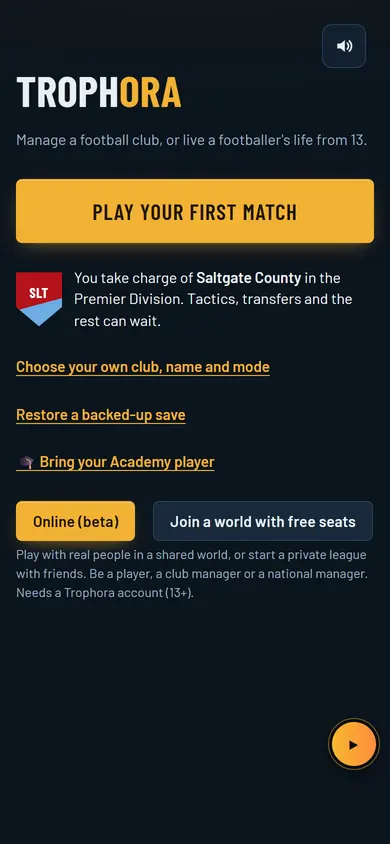
The first screen offers Play your first match: one tap puts you in charge of a ready-made club and takes you to kick-off. It's the fastest way to see the game. For your own career, choose Choose your own club, name and mode.
Manager mode
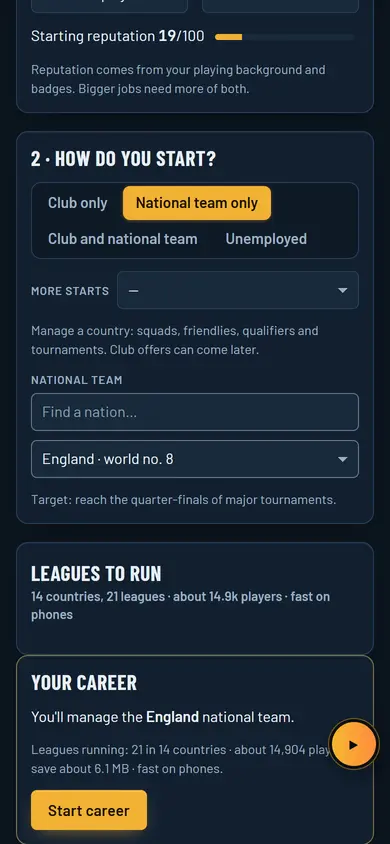
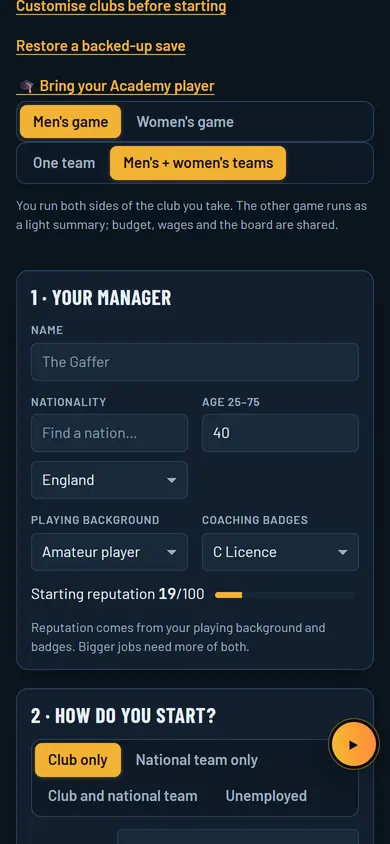
- 1 · Your manager: a name, nationality, age, playing background and coaching badges. Together they set your starting reputation; bigger jobs need more of it.
- 2 · How do you start? Club only, National team only, Club and national team or Unemployed (apply for jobs, go to interviews, take an offer). More starts adds first-team coach and scenarios.
- Choose Men's game or Women's game, and One team or Men's + women's teams.
- Pick a country and division, then a club card. Each card shows the board's target ("avoid relegation", "a top-half finish", "a title challenge"), the best player and the budget.
- Press Start career.
Player mode (the football career game)
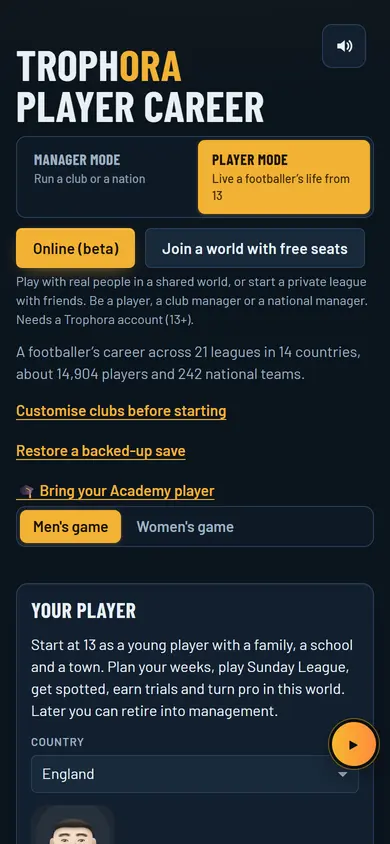
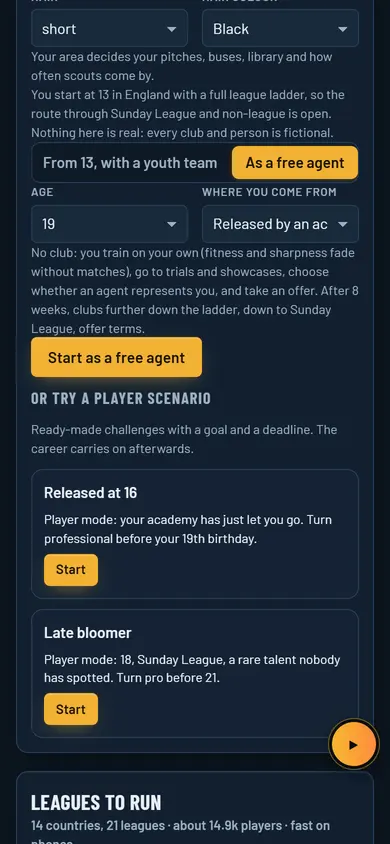
Player mode starts you at 13 with a family, a school and a town, playing Sunday League. Choose your look, position, stronger foot, where you grew up and your talent. A free-agent start, aged 17 to 24, is there too. Played Trophora Academy? Bring your Academy player imports the graduation code a grown-up made for you.
Tip: for a first season, pick a club whose board wants "a top-half finish" or "avoid relegation". You get time to learn, and beating low targets keeps the board happy.


The Office, Continue and the day flow
Your Office is home: read the Inbox, check the numbers, then move the calendar on.
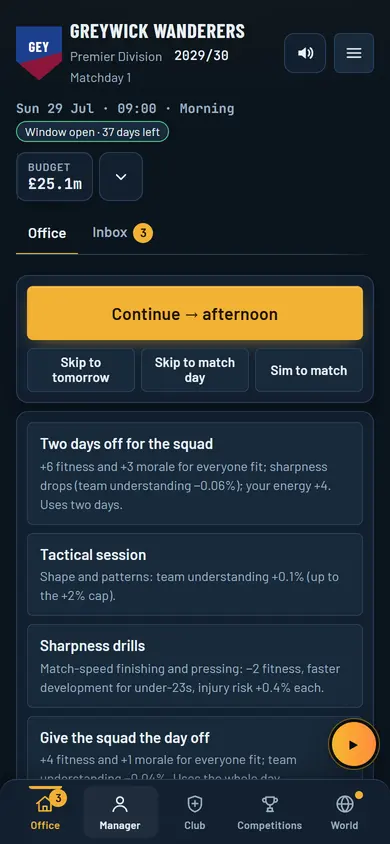
After you start you land in the Office. Along the top are your club, the date and the time of day (each day has a morning, afternoon and evening), whether the transfer window is open, and your budget and wage bill.
- Main tabs: Office, Manager, Club, Competitions and World. On a phone they sit in a bar at the bottom. The Menu (top right) has every screen, settings, Sign in and the Editor.
- Inbox first: new mail from the board, staff, scouts and the press arrives here. Open the welcome message.
- The numbers: transfer budget, board confidence, fan mood and team spirit.
- First steps: win a match, sign a player and set your tactics, each with a shortcut.
Moving time on
The Office has one big Continue button at the top: press it to move to the next part of the day. The skips sit beside it (Skip to tomorrow, Skip to match day, Sim to match), and today's decision, such as the training session, sits under it. Nothing happens until you press one, so take your time.
Tip: if a decision needs you (an offer, an injury, a board message), the game stops and asks. You can't miss one by skipping.


Pick the team and set the tactics
Choose your eleven in Squad, then your shape and style in Tactics.
Go to Club then Squad. Tick eleven players, or press Auto-pick to let your assistant do it. Switch between Table and Cards to see the squad as a list or as player cards. Watch for players marked "Final year": their contracts end this season.
Then open Tactics. It works one section at a time: Line-up, Style, Instructions, Roles, Opponent and Set pieces.
- Style: start from a style such as Quick break, Keep the ball, Hunt the ball, Go direct or Shut up shop. Change anything and it becomes Custom.
- Line-up: pick the formation from the dropdown (14 to choose from), with a separate shape with and without the ball if you want one, or press Auto-pick.
- Mentality: five steps, from Very defensive to Very attacking. Balanced is a good place to start.
- Roles: each position gets a role (37 in all) and a duty: Defend, Support or Attack. The stars show how well a player suits it; on a phone the roles are cards.
- Opponent and Set pieces: plans for the next opponent and for corners and free kicks.
Training sets the week's intensity (Light, Normal, Hard) and focus. Hard training builds young players faster but tires everyone.
Tip: pick a style that suits your best players rather than the one you like most. Fast wingers love Quick break; good passers suit Keep the ball.


Play or sim the match
Watch it live in 2D or 3D, play it yourself, or take a quick result.
On match day the Office shows four ways in:
- Play match: you control players on the pitch.
- Watch from the dugout: the match plays out live with commentary, and you manage from the side.
- Quick highlights: just the big moments.
- Quick result: straight to the score.
Match controls
- Pause, Speed 2× (1×, 2× or 4× when watching), Mute and Sim to full time.
- 3D view / 2D view, and TV camera to change the 3D camera: TV, behind the goal, follow the ball, from above.
- Shouts along the top: Push forward, Park the bus, Press high, Get it wide, Through the middle, Shoot on sight, Calm it down, Time-waste. On a computer, number keys work too.
- Subs and tactics can change at any time; pause first.
On a phone the match goes full screen. Upright, the pitch sits on top with the controls below. Turn sideways for the whole pitch; in Play match you get a joystick with Pass, Through, Lob and Shoot.
In top-flight, international and continental matches, Video Review can check goals, penalties and offside. The Laws are played properly: a keeper can't handle a team-mate's back-pass or throw-in, holding the ball over six seconds gives an indirect free kick, and you can't score straight from a throw-in.
At full time your result shows straight away, while the other matches finish in the background. A result is never lost, even if the page reloads.
Tip: winning by a goal late on? Time-waste or Protect the lead. Chasing the game? Push forward and Shoot on sight.


Transfers and scouting
Find players, scout them to see their true ratings, then make an offer.
Go to Club then Transfers. The tabs are Market, Window desk, Deadline Day and Search players. Filter by position, league, country or nation, tick Affordable only, and press Offer on a player you like.
Why ratings are ranges
You only know other clubs' players as well as your scouts do. Until a player is scouted, his ratings show as a range (for example 62–74) and his overall as a star range. Send a scout (under Club, Club, Scouting & Academy) and the report narrows the range to the real number. Reports go stale over time. Your own squad and your players out on loan are always exact.
- Windows: each country has its own. The top bar shows "Window open · N days left". When it's shut you can still agree a deal for the next window. Free agents can sign any time.
- Agents and terms: agree a fee with the club, then wages, length and clauses with the player or his agent. A profile shows what the player would ask you a week, and if he'd take less, why.
- Medicals: basic, or in-depth with results from the club doctor the next round.
- Loans: in and out, with an option to buy.
- Deadline Day Live: the last day of a window, hour by hour.
Tip: a wide range means you're guessing. Scout before a big fee; cheap young players are a fair gamble.


Contracts, the board, the fans and the press
Keep the people who can sack you on side.
- The board (Club, Club, Boardroom): board confidence out of 100, the season's objectives with "on track" or "behind", and what the board values. Below the target for too long and your job is at risk. You can request a meeting.
- The fans: fan mood follows results, signings and ticket prices. Happy fans fill the ground.
- Contracts: renew good players before their final year, or they can leave for nothing. Wages count against your wage bill, which the board watches. If a matchday leaves you short, the board covers it as Board funding (up to a third of a season's turnover), and its confidence drops.
- Your academy: each prospect reaches your inbox from the academy director, marked Needs your answer: Promote, Keep in the academy or Release.
- Press conferences: before big matches and after signings, a reporter asks questions. Each answer has a tone, such as Calm: Respect the opponent, Criticise: Mind games or Deflect, and the effect is shown before you choose. Skip the rest answers for you.
- Money: Finances and Banks & loans show turnover, debt and your credit score. A new stadium is a big step: plan it in Facilities when the money is there.
Tip: a calm answer is never wrong. Mind games can fire your players up, but they fire the rival up too.


Saving, backup codes and cloud save
Your career saves itself. Make a backup before you clear your browser.
- Automatic: the game saves on your device as you play. There's no save button to forget.
- Backups: Menu, then Export my save: download the file, or copy a backup code. Keep it somewhere safe.
- Restoring: Restore a backed-up save on the start screen, or Import a save in the menu.
- Cloud save: open Menu, then Sign in · save to the cloud, and sign in with your email address (we email you a sign-in link; there's no password), then Turn cloud save on. Use Sync now on one device and Download to this device on the other. Accounts are for ages 13 and up.
Tip: clearing your browser's site data, or playing in a private window, can delete a save on that device. Export a backup first.


Online basics (beta)
Play in a shared world with real people.
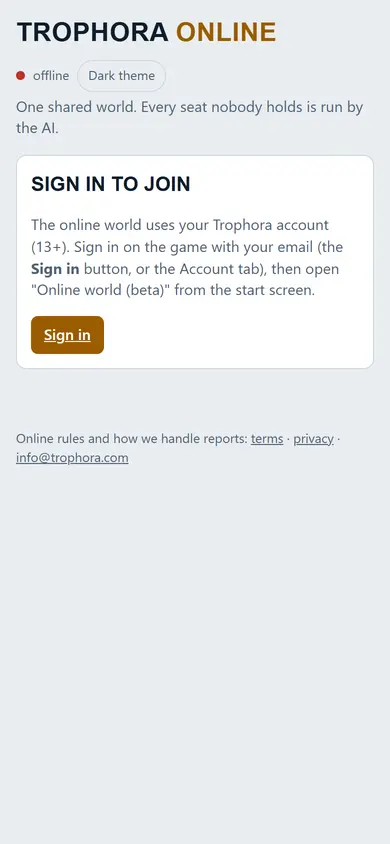
- On the start screen press Online (beta), or Join a world with free seats.
- Sign in with your email address (a link arrives by email; it works for 20 minutes) and choose an online name. You must be 13 or over.
- Take a seat: a player, a club manager or a national manager, in a public world or a private league with an invite code from a friend.
Online seasons move on in real time. Climb ten Divisions in 14-day seasons, play live friendlies, watch other people's matches, and aim for the monthly Champions Cup. There's no typed chat: just preset shouts and reactions.
Tip: learn the ropes in a single-player career first. Online, the other managers are real people.


Tips for your first season
- Read the Inbox each day. Most of what matters arrives there first, and the game stops when a decision is yours.
- Don't spend the whole budget in week one. Keep some for injuries and for the board.
- Rotate in busy weeks: tired players (under about 80% fitness) pick up more knocks.
- Scout before you pay a big fee. A wide rating range is a guess.
- Renew your best players' contracts a year early.
- Young players improve with match time and hard training. Lend the ones who don't play.
- Turn on 3D for big matches; 2D is quicker and lighter on older phones.
- Export a backup save now and then, especially before clearing your browser.
- Stuck? Every number in the game has a short explanation; tap it.
Questions or found something confusing? Email [email protected], or use Send feedback in the game's menu.